Forgetting your WiFi password is surprisingly common. You may already be connected to the network on your Android phone, but when you need to connect a laptop, tablet, smart TV, or another phone, you suddenly cannot remember the password.
Fortunately, many modern Android phones make it easy to view or share the password of a WiFi network that is already saved on your device. Depending on your Android version and phone manufacturer, you may be able to see the password directly or generate a QR code that another device can scan.
If you are searching for how to find WiFi password on Android, this guide explains the easiest methods, including how to find a password on Samsung Galaxy, Google Pixel and other Android phones, how to use the WiFi QR code option, what to do on older Android versions, and how to troubleshoot when the password does not appear.
Important: These methods are intended for WiFi networks that you own or are authorized to access. They do not provide a way to obtain passwords for networks you do not have permission to use.
Can You Find a Saved WiFi Password on Android?
Yes, on many newer Android devices.
Recent Android versions generally allow you to share the credentials of a saved WiFi network through a QR code. On some devices, the actual WiFi password is also displayed below or alongside the QR code.
The exact procedure depends on your Android version and manufacturer. Samsung, Google Pixel, Xiaomi, OnePlus, Motorola and other manufacturers may use slightly different menus.
The easiest approach is therefore to start from the WiFi settings on your phone.
How to Find WiFi Password on Android
The general process on modern Android phones is:
Settings → Network & internet / Connections → WiFi → Select the connected network → Share
Depending on the device, you may need to authenticate with your fingerprint, face recognition, PIN or password.
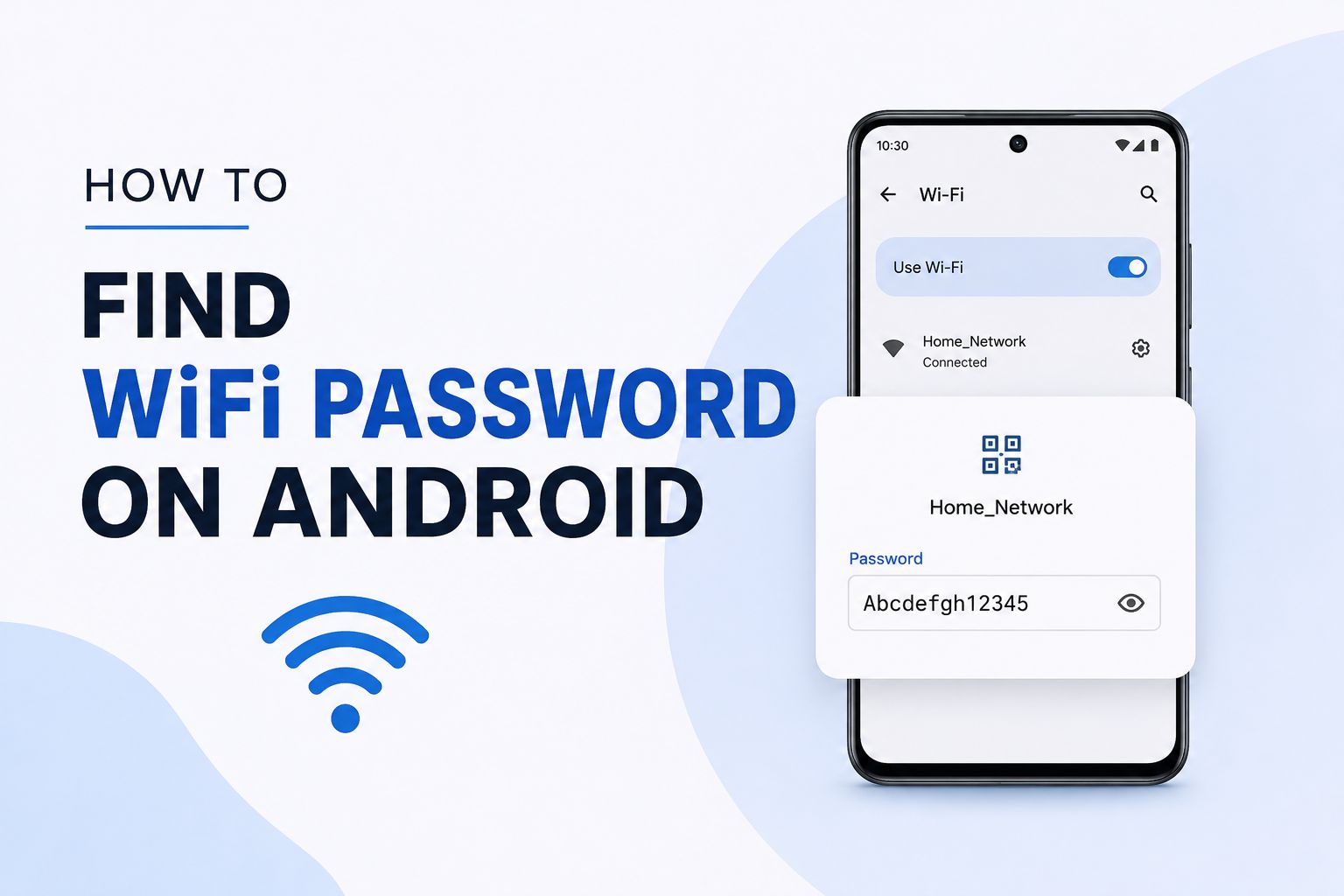
After authentication, your phone may display a QR code containing the WiFi network information.
On some Android devices, the password will also be displayed in plain text.
Step-by-Step Method
Step 1: Open Settings
Open the Settings app on your Android phone.
Step 2: Open WiFi Settings
Look for an option such as:
Network & internet → Internet
or:
Connections → WiFi
The wording depends on your phone.
Step 3: Select the Connected WiFi Network
Tap the WiFi network you are currently connected to.
You may see options such as network details, disconnect, forget or share.
Step 4: Tap Share
Look for the Share button.
Your phone may ask you to verify your identity using your screen lock.
Step 5: Authenticate
Use your PIN, password, fingerprint or other supported security method.
Step 6: View or Share the WiFi Information
Your phone should display a QR code.
On supported Android devices, the WiFi password may also appear below the QR code.
If the password is not shown, you can still use the QR code to connect another compatible device to the same network.
How to Find WiFi Password on Samsung Galaxy
Samsung Galaxy phones have a slightly different Settings layout from stock Android.
On many recent Galaxy devices, you can access the WiFi sharing option through:
Settings → Connections → Wi-Fi
Tap the network you are currently connected to.
Look for the QR code or Share option.
After authentication, Samsung may display a QR code that another device can scan to connect to the same WiFi network.
The exact interface can vary depending on your Galaxy model and One UI version.
Can Samsung Show the Actual WiFi Password?
On some Galaxy devices and software versions, the WiFi sharing screen may show the password directly beneath the QR code.
If your Samsung phone only displays a QR code, you can scan that QR code using another compatible device instead of manually entering the password.
This is often the easiest way to connect another phone to the network.
How to Find WiFi Password on Google Pixel
Google Pixel phones use an Android interface that is close to Google’s standard Android experience.
A typical path is:
Settings → Network & internet → Internet
Tap the WiFi network you are connected to.
Then select Share.
After verifying your identity, Android can generate a QR code containing the network information.
Another phone can scan the QR code to connect without manually typing the password.
The precise wording can change between Android versions, so if you do not see “Share,” look for a nearby option related to WiFi network sharing.
How to Share WiFi Password Using a QR Code
A QR code is one of the easiest ways to share WiFi access between compatible devices.
Instead of telling someone a long password containing letters, numbers and symbols, you can display the WiFi QR code from your phone.
The other person can then scan it using their phone’s camera or WiFi QR-code scanner.
Why Use a WiFi QR Code?
It is:
- Faster than typing a password
- Less prone to typing mistakes
- Convenient for guests
- Useful for complicated WiFi passwords
- Available on many modern Android phones
The QR code is particularly useful when your phone does not display the password as readable text.
How to Find WiFi Password on Android 10 and Newer
Android 10 introduced a convenient WiFi sharing feature that allows supported devices to generate a QR code for a saved network.
On many phones running Android 10 or later, the process is broadly:
Settings → Network & internet → WiFi → Select network → Share
After authentication, Android generates a QR code.
However, manufacturers can modify Android’s interface, so Samsung, Xiaomi, OnePlus, Motorola and other phones may present the feature differently.
How to Find WiFi Password on Older Android Phones
Older Android versions may not provide a built-in option to display saved WiFi passwords.
If your phone is running an older version of Android, you may not see a Share or QR-code option in WiFi settings.
In that situation, your safest options are to:
- Check the router label
- Check the router manufacturer’s app
- Log into your router’s administration page if you own the network
- Ask the network owner
- Check another device that is already connected
- Use your Internet provider’s router-management application if available
Avoid installing random applications that claim to reveal saved WiFi passwords. Such apps may request unnecessary permissions or expose your personal information.
How to Find WiFi Password on Android Without Root
On modern Android phones, you generally do not need root access to share or retrieve WiFi credentials through the built-in WiFi settings.
If your phone supports the QR-code sharing feature, you can access it directly through Settings.
Rooting a phone simply to retrieve a WiFi password is unnecessary for most current Android devices and can introduce security and stability risks.
How to Find WiFi Password From a QR Code
If your Android phone gives you a QR code but does not show the actual password, you can scan the QR code with another device.
The QR code contains the WiFi network information required for compatible devices to connect.
If you want to know the actual text password rather than simply connect another device, the easiest solution may be to check the router or access the router’s administrative settings if you are authorized to do so.
Some QR-code scanner applications may also reveal the encoded network information, but you should be careful about granting third-party apps access to sensitive information.
How to Find WiFi Password From Your Router
If the Android phone does not provide a way to view the password, checking the router is another reliable method.
Many routers have a label containing the original:
WiFi Name / SSID
and
WiFi Password / Wireless Key
Check the underside or back of the router.
However, this only works if the password has not been changed from the original configuration.
If someone changed the WiFi password later, the printed password may no longer be correct.
How to Find WiFi Password Through Router Settings
If you own or administer the WiFi network, you can also log into the router’s management interface.
The exact address and login process depend on the router manufacturer and Internet provider.
Once logged in, look for a section such as:
WiFi Settings
Wireless Settings
Security
or
WLAN
The exact terminology varies.
If you change the WiFi password, remember that every previously connected device may need to reconnect using the new password.
What If the WiFi Password Is Not Showing?
There are several reasons why the password may not appear.
Your Android Version Does Not Support It
Older Android versions may not provide a built-in password-sharing feature.
Your Manufacturer Changed the Interface
Samsung, Xiaomi, OnePlus, OPPO, Vivo and other manufacturers can modify Android’s settings interface.
The feature may exist but have a different name or location.
You Are Not Connected to the Network
Some phones only provide the easiest sharing option for networks that are currently connected.
You Do Not Have Authentication Access
Your phone may require the device PIN, password or biometric authentication before showing WiFi sharing information.
The Network Is Managed by an Organization
Some workplace, school or enterprise WiFi networks use authentication systems that do not behave like a normal home WiFi password.
How to Find a Saved WiFi Network on Android
If you are not currently connected to a network but it was previously saved, your phone may still show it under saved networks.
The location depends on the Android version.
Look under:
Settings → WiFi → Saved networks
or a similarly named section.
From there, select the network if your phone provides sharing or management options.
Some networks may require you to reconnect before their credentials can be shared.
How to Connect Another Phone Without Knowing the WiFi Password
If your Android phone is already connected to WiFi, you may not need to know the password at all.
Open the connected network’s settings and choose Share.
Your phone generates a QR code.
The second phone scans the code and can connect to the same WiFi network without manually typing the password.
This is especially useful when the WiFi password is long or difficult to remember.
Why Can’t I See the Share WiFi Option?
If you cannot find the Share option, check your Android version and phone manufacturer.
Also make sure you have selected the actual connected network rather than simply opening the general WiFi list.
On some phones, you need to tap a gear icon or network-details button first.
If the feature still does not appear, check whether your phone has a pending software update.
Is It Safe to Share a WiFi QR Code?
A WiFi QR code can contain information that allows another device to connect to the network.
Therefore, treat it like sharing the WiFi password itself.
Only display or share the QR code with people you trust.
Do not post your home WiFi QR code publicly or upload it to social media.
If you believe your WiFi credentials have been shared with unauthorized people, change the WiFi password through your router’s settings.
Can You Find WiFi Password From Android Bluetooth?
No.
Bluetooth does not normally provide a way to reveal the password of a WiFi network.
If you need to share WiFi access, use Android’s built-in WiFi sharing or QR-code feature where supported.
Can You Find WiFi Password Without Being Connected?
It depends on the device and whether the network credentials are saved.
If the network is saved and your Android version provides access to its sharing information, you may be able to generate a QR code.
If the network is neither connected nor saved, your phone generally cannot simply reveal its password.
For a network you own, check the router label or router administration settings.
Can You Find the WiFi Password for a Network You Never Connected To?
Not through normal Android WiFi settings.
Android does not provide a legitimate way to reveal the password of a network you have never been authorized to access.
If you need access, ask the network owner for the password or request that they share the WiFi connection through a QR code.
Troubleshooting WiFi Password Sharing on Android
If WiFi sharing is not working, try these steps.
Restart Your Phone
A temporary software problem may prevent WiFi settings from behaving correctly.
Update Android
Check:
Settings → Software update
Install available updates if appropriate.
Reconnect to the WiFi
Forget the network and reconnect if you know the correct password.
Check Your Screen Lock
Some devices require PIN, password or biometric authentication before displaying network-sharing information.
Restart the Router
If the problem involves the network itself rather than password sharing, restarting the router may help.
WiFi Password vs WiFi Network Name
It is important to distinguish between the two.
The SSID is the name of the WiFi network that appears in your WiFi list.
The WiFi password is the security key used to authenticate and connect to the network.
For example:
WiFi Name: HomeNetwork
WiFi Password: YourPrivatePassword
The name is usually safe to share publicly, but the password should be treated as private.
Frequently Asked Questions
How do I find WiFi password on Android?
Open Settings, go to WiFi or Network & internet, select the connected network and tap Share. After authentication, many modern Android phones display a QR code and some also show the password.
How do I find WiFi password on Samsung?
Go to Settings → Connections → Wi-Fi, select your connected network and look for the QR code or Share option. Authenticate if requested. The exact interface depends on your Galaxy model and One UI version.
Can Android show saved WiFi passwords?
Modern Android devices can often share saved WiFi credentials through a QR code. Whether the actual password is displayed as text depends on the Android version and manufacturer.
How can I share WiFi without telling the password?
Use Android’s built-in WiFi sharing feature to generate a QR code. The other device can scan the code and connect without manually entering the password.
Can I find a WiFi password without root?
Yes, on many modern Android devices. The built-in WiFi sharing feature does not generally require root access.
Why does my Android only show a QR code?
Some Android phones display the WiFi credentials through a QR code without showing the password as plain text. You can use the QR code to connect another compatible device.
How do I find WiFi password on an old Android phone?
Older Android versions may not support built-in WiFi password sharing. If you own the network, check the router label, router settings or your Internet provider’s application.
Can I see the WiFi password from my router?
If you own or administer the network, you can often check or change the wireless security settings through the router’s administration interface.
Can someone get my WiFi password from my Android phone?
If someone has access to an unlocked phone and the device allows WiFi sharing, they may be able to generate a QR code for a saved network. Protect your phone with a strong screen lock and only share WiFi information with trusted people.
Is a WiFi QR code the same as a WiFi password?
The QR code contains WiFi connection information. A compatible device can scan it and connect without manually entering the password.
Final Thoughts
Finding a saved WiFi password on Android is much easier than it used to be.
On most modern Android phones, the quickest method is to open the WiFi settings, select the connected network and tap Share. After authentication, the phone can generate a QR code, and some devices will also display the actual password.
Samsung Galaxy phones and other Android manufacturers may use different menu layouts, so the exact steps can vary.
If your phone does not provide a password-sharing option, especially on an older Android version, check the router label or router administration settings if you are authorized to manage the network.
Most importantly, treat your WiFi password as private information. A QR code that provides access to your network should be shared only with people you trust.