Knowing how much RAM your laptop has is useful when checking its performance, installing software, upgrading memory, or troubleshooting slow performance. RAM, or Random Access Memory, is the temporary memory your laptop uses to run applications and handle multiple tasks. Whether you use a Windows laptop or a MacBook, you can check the installed RAM in just a few steps without opening the laptop or installing any third party software.
How to Check RAM in Laptop (Windows)
The easiest way to check RAM in a Windows laptop is through Settings or Task Manager. Windows shows the amount of installed RAM along with other system information.
Check RAM Using Windows Settings
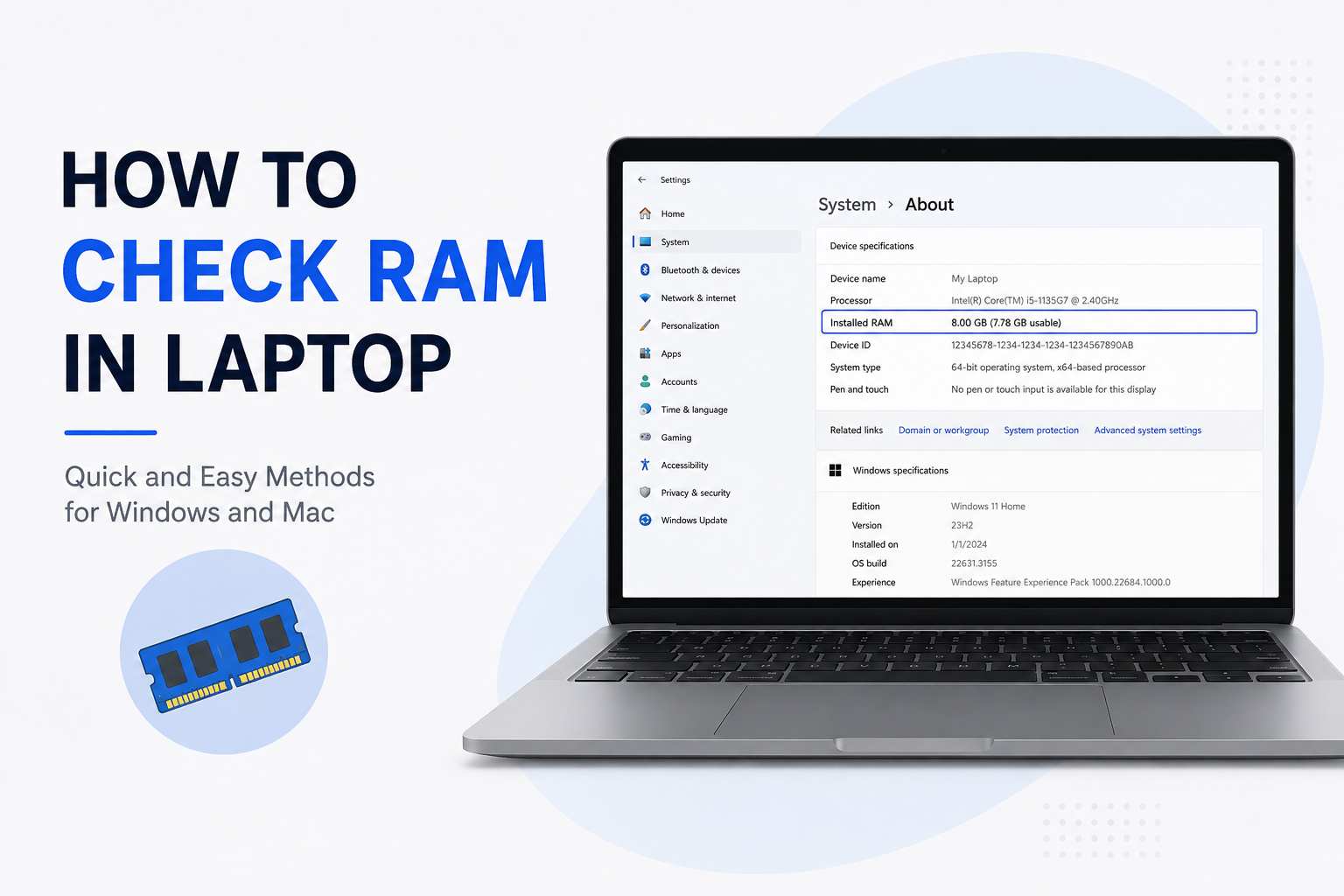
On Windows 11, right click the Start button and select Settings. Then go to System and select About. Under Device specifications, look for Installed RAM. This section shows how much RAM is installed on your laptop, such as 4GB, 8GB, 16GB, 32GB, or more. Microsoft also lists the processor and system type in the same area.
Check RAM Using Task Manager
Task Manager is another quick way to check your laptop’s RAM and see how much memory is currently being used. Press Ctrl + Shift + Esc on your keyboard to open Task Manager. You can also right click the Start button and select Task Manager. Once Task Manager opens, select Performance and then click Memory. You will see the total installed RAM, current memory usage, available memory, memory speed, and other useful information depending on your laptop. Task Manager is particularly useful if you want to know not only how much RAM your laptop has but also how much RAM is being used at the moment.
Check RAM Using System Information
Windows also provides a built in System Information tool that can show hardware details. Press Windows + R, type msinfo32, and press Enter. In the System Information window, find Installed Physical Memory (RAM). This displays the amount of physical RAM recognized by Windows. This method can be useful when you want more detailed information about your laptop’s hardware.
Check RAM Using Command Prompt
You can also check RAM through Command Prompt. Open the Start menu, search for Command Prompt, and open it. Type wmic computersystem get TotalPhysicalMemory and press Enter. Windows will display the total physical memory in bytes. This method is less convenient for beginners because the result is shown in bytes rather than an easy-to-read value such as 8GB or 16GB.

How to Check RAM in a Laptop Without Turning It On
If your laptop is not working but you want to know its original RAM specification, check the model number printed on the laptop or its original box and search for the manufacturer’s official specifications. Keep in mind that the advertised RAM may not always match the currently installed RAM if the memory has previously been upgraded or replaced.
How to Check RAM on a MacBook
Checking RAM on a MacBook is also straightforward. Click the Apple menu in the top left corner and select About This Mac. Depending on your macOS version, you can see the amount of memory directly in the About section or select More Info for additional system details. Apple also provides System Report, which contains detailed hardware information about the Mac.
Check RAM Usage on MacBook
If you want to see how much RAM your Mac is currently using rather than simply checking the installed memory, open Activity Monitor and select the Memory tab. Activity Monitor shows memory usage and memory pressure, helping you understand whether your Mac is efficiently managing its available RAM.
How to Check RAM Speed in a Laptop
If you want to check more than the total RAM capacity, Windows Task Manager can provide additional memory information. Open Task Manager, select Performance, and click Memory. Depending on your laptop and Windows configuration, you may see the memory speed, number of slots used, form factor, and other details. This information is particularly helpful if you are planning a RAM upgrade because the replacement memory needs to be compatible with your laptop.
How to Check How Much RAM Is Being Used
Checking installed RAM and checking current RAM usage are two different things. For example, a laptop may have 16GB of RAM installed but currently be using only 7GB. On Windows, open Task Manager > Performance > Memory to see the current memory usage. You can also open the Processes tab to identify applications that are consuming a large amount of memory. High memory usage does not automatically mean there is a problem because Windows and applications actively use available RAM to improve performance.
How Much RAM Does a Laptop Need?
The amount of RAM you need depends on how you use your laptop. For basic tasks such as web browsing, email, Microsoft Office, online classes, and light everyday use, 8GB RAM is generally a practical starting point. 16GB RAM is a better choice for users who regularly multitask, edit photos and videos, use demanding applications, or want a more comfortable experience for several years. 32GB RAM or more can be useful for professional video editing, 3D work, software development, virtual machines, large creative projects, and other demanding workloads. Gaming laptops can also benefit from 16GB or more depending on the games and other applications being used.
Is More RAM Always Better?
More RAM can improve multitasking and help demanding applications run comfortably, but adding RAM does not automatically make every laptop faster. If your laptop already has enough memory for your normal workload, adding more RAM may provide little noticeable improvement. Other components, including the processor, storage drive, graphics hardware, and cooling system, also affect overall performance.
How to Know if Your Laptop Needs More RAM
If your laptop frequently becomes slow when several applications or browser tabs are open, checking memory usage can help identify whether RAM is a limitation. On Windows, open Task Manager and look at the Memory section while performing your normal tasks. If memory usage remains very high and applications begin slowing down or Windows relies heavily on virtual memory, additional RAM may help if your laptop supports an upgrade. On Mac, Activity Monitor’s Memory Pressure graph can help indicate whether the system is efficiently managing available memory.
Can I Upgrade the RAM in My Laptop?
Whether you can upgrade laptop RAM depends on the specific model. Some laptops have removable or replaceable RAM modules, while others use memory that is soldered directly to the motherboard. Before purchasing RAM, check the laptop manufacturer’s specifications and determine the supported memory type, maximum capacity, speed, and number of available slots. For Mac computers, Apple provides System Information and other documentation that can help determine whether memory is upgradeable on supported models.
Frequently Asked Questions
How do I check RAM in a laptop?
On a Windows laptop, go to Settings > System > About and look for Installed RAM. You can also press Ctrl + Shift + Esc, open Task Manager, select Performance, and click Memory. On a MacBook, open the Apple menu and select About This Mac.
How do I check RAM in Windows 11?
Go to Settings > System > About and check Installed RAM under Device specifications. Alternatively, open Task Manager with Ctrl + Shift + Esc, select Performance, and choose Memory.
How do I check RAM usage on my laptop?
On Windows, press Ctrl + Shift + Esc, open Task Manager, select Performance, and click Memory. The Memory section shows how much RAM is currently being used and how much is available.
Is 8GB RAM enough for a laptop?
8GB RAM can be enough for everyday tasks such as browsing, office work, streaming, and online learning. However, 16GB is generally more comfortable for heavier multitasking, gaming, editing, and demanding applications.
Is 16GB RAM enough for a laptop?
For most everyday users, students, professionals, and many gamers, 16GB RAM provides a good balance between performance and cost. Users performing highly demanding professional workloads may benefit from 32GB or more.
Can I check RAM without opening my laptop?
Yes. You can check the installed RAM through Windows Settings, Task Manager, System Information, or manufacturer specifications without physically opening the laptop.
How do I check RAM speed?
On Windows, open Task Manager > Performance > Memory. The Memory section can show the RAM speed and other hardware information supported by your laptop.
How do I check RAM on a MacBook?
Click the Apple menu > About This Mac to view basic memory information. For more detailed hardware information, open System Information or System Report.
Final Thoughts
Checking RAM in a laptop is a simple process that can be completed without installing additional software. Windows users can quickly check installed RAM through Settings or get more detailed information through Task Manager, while MacBook users can use About This Mac and System Information. If you are checking RAM because your laptop feels slow, also look at current memory usage rather than focusing only on the total RAM installed. This will help you determine whether a RAM upgrade could actually improve your laptop’s performance.